Features
Everything your project specification needs, in one tidy place
thesheet helps interior designers build cleaner spec sheets, add products faster, share client-friendly views and keep project details moving without another spreadsheet circus.
The Project hub
From product list to project control
Build your specification once, then use it for the work around it: client approvals, comments, quote requests, purchase orders, service items, margins and project overviews. The sheet stays useful after the products are added.
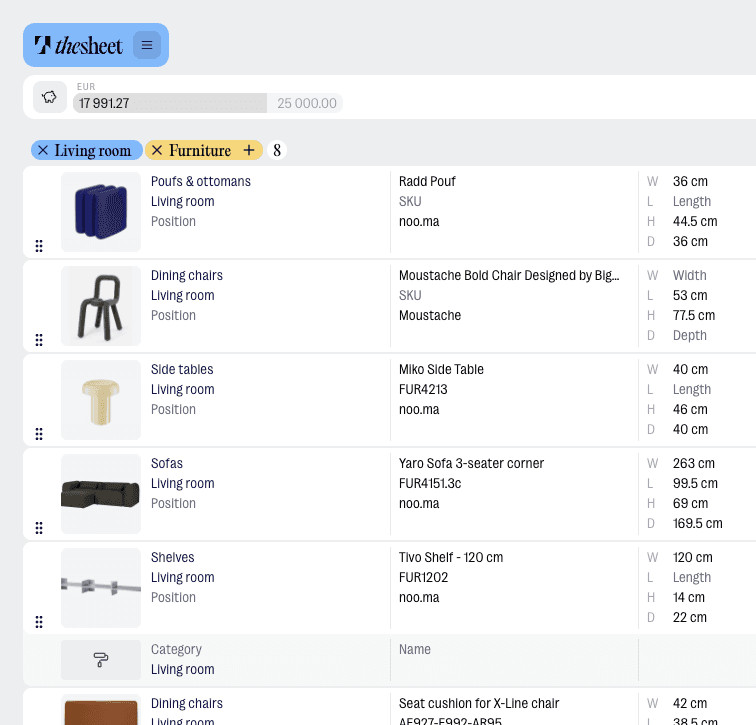
Build the specification
Create the working sheet your project can actually run from. Add products, organise views and keep the details clear enough for clients, suppliers and your own team to follow.
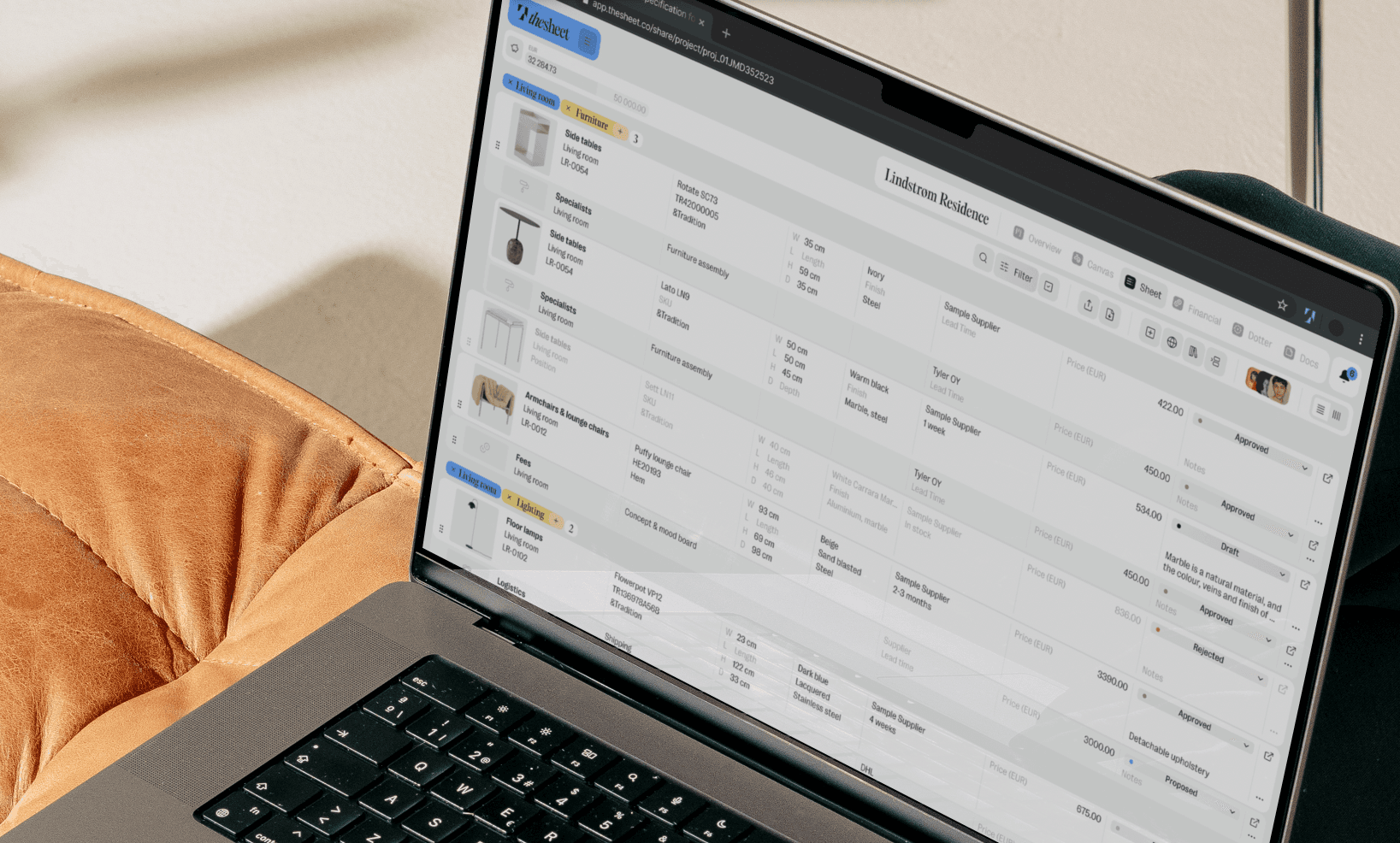
Spec sheets
Create structured product specifications with images, details, quantities and notes in a format that looks cleaner than a spreadsheet and works harder than a PDF.
Read more
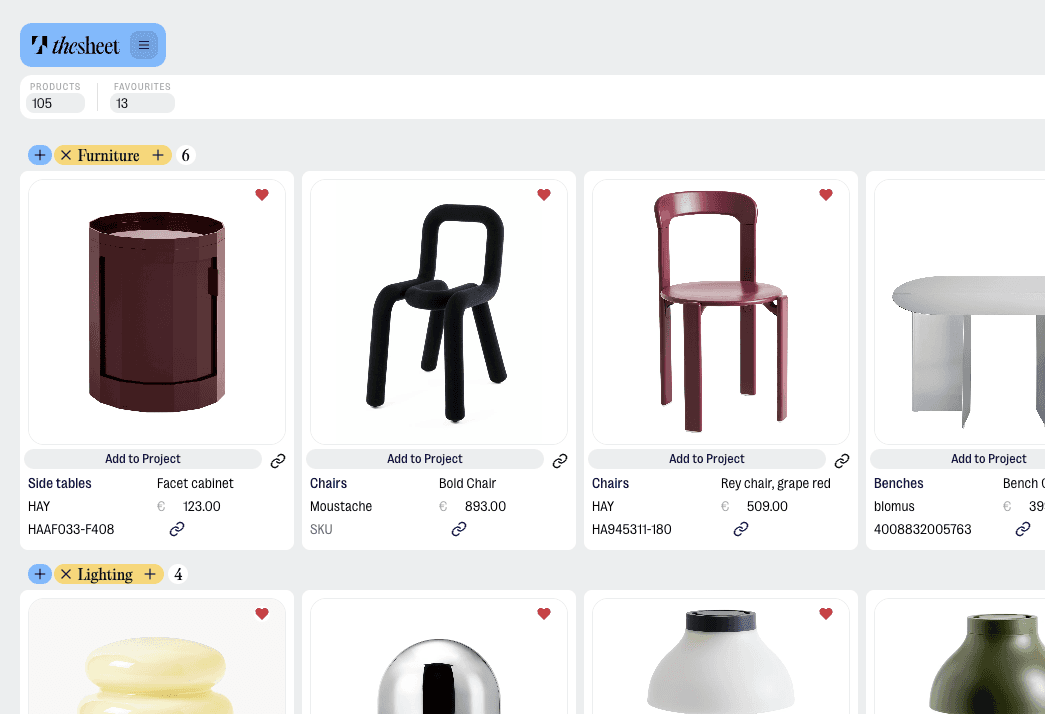
Product Library
Save products you use often, then pull them into new projects without starting from scratch each time.
Read more

Views, filters and organisation
Group, filter and organise project information so you can see the right products at the right moment.
Read more
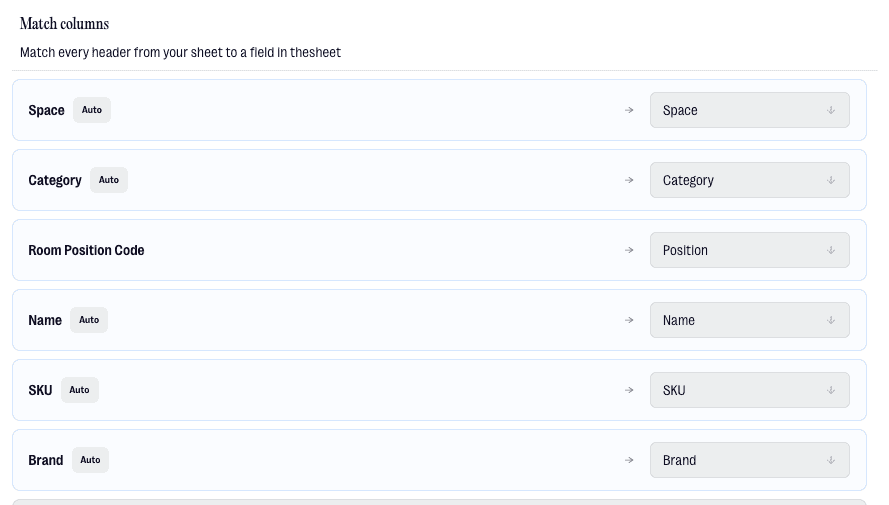
Import from Excel
Bring existing product lists into thesheet instead of rebuilding everything by hand.
Read more


Add products faster
Less copy-paste, fewer mystery tabs. Use the Product Clipper and Donut, thesheet’s AI helper, to pull product details into your sheet in seconds.
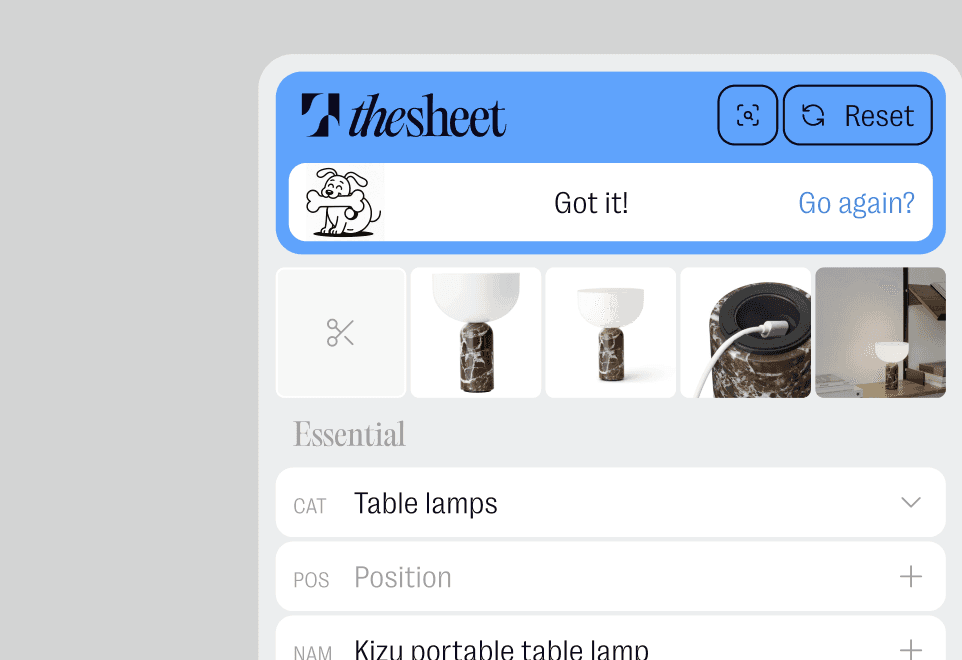
Smart Product Clipper
Use the AI-powered Chrome Product Clipper to capture product information from supplier pages and send it into thesheet.
Read more
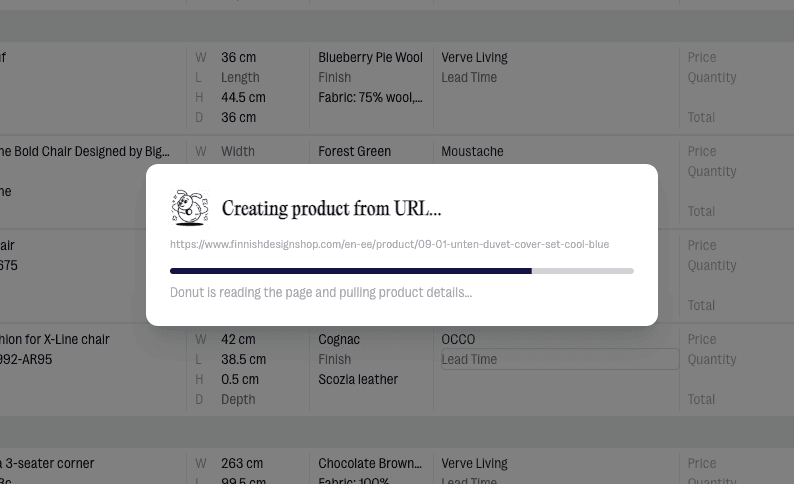
Paste a product URL
Paste a product URL in Sheet view and Donut can fetch product information and create a product for you.
Read more
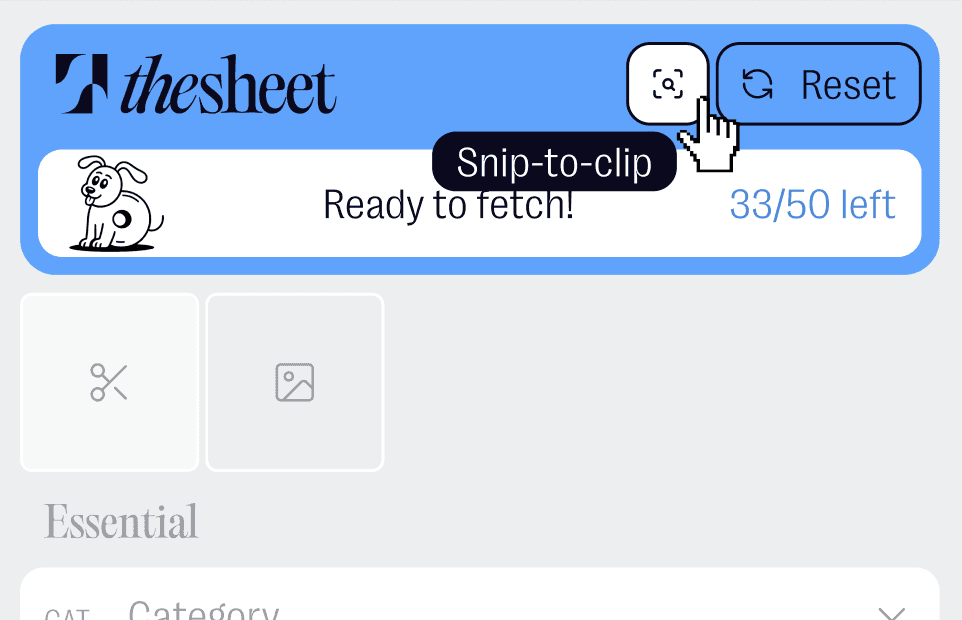
Snip-to-Clip
For awkward pages, use Snip-to-Clip to capture product images and details from the part of the page you need.
Read more
Share with clients
Send a client link that looks considered, not cobbled together. Clients can review the client view, approve items and leave comments without needing to work inside your studio setup.

Client links and client view
Share a project link with clients so they can see the right items in a clean client view.
Read more
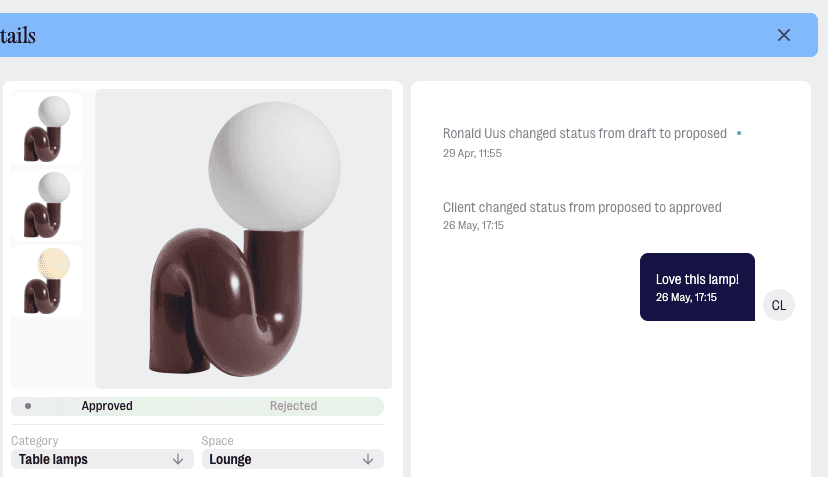
Approvals and comments
Collect decisions and comments next to the product information, so feedback does not get buried in email threads.
Read more
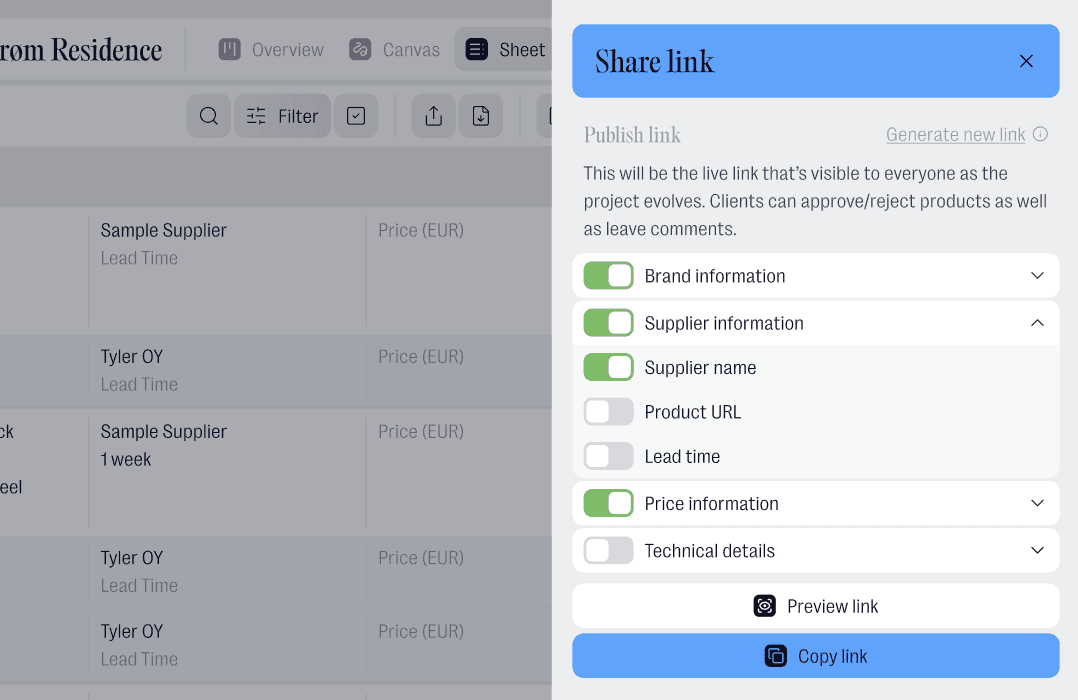
Sharing controls
Control what clients can see and do when you share a project with them.
Read more

Branded client experience
Add studio branding to client-facing views when you want the shared project to feel more like your own.
Read more

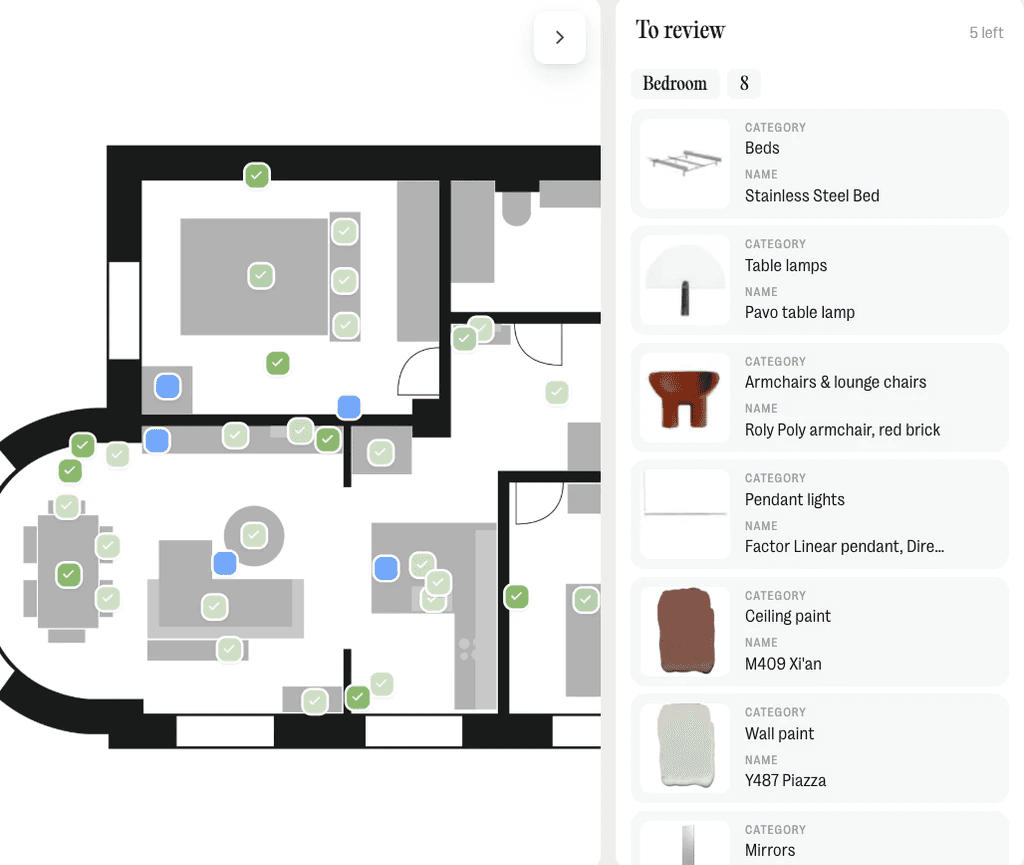
Run the project
Once the products are in, thesheet helps with the work around them: progress, services, finances and the admin that usually leaks into separate files.

Project overview
See the shape of a project at a glance, including the details that help you keep track without digging through the full sheet.
Read more
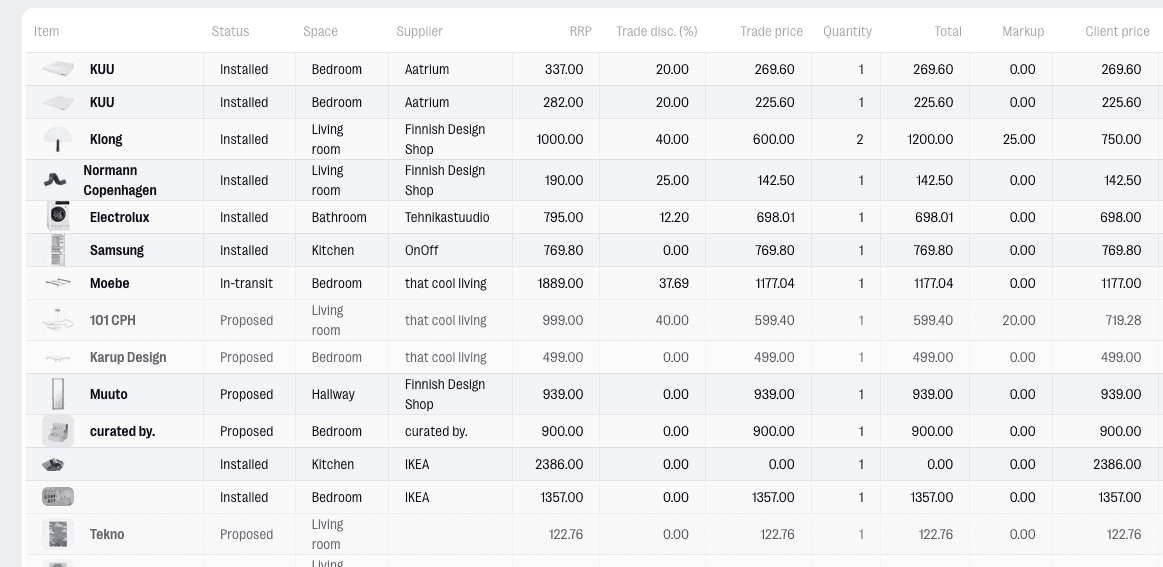
Project finances
Keep project finance information separate from the main Overview, with editing available on Studio and Agency.
Read more
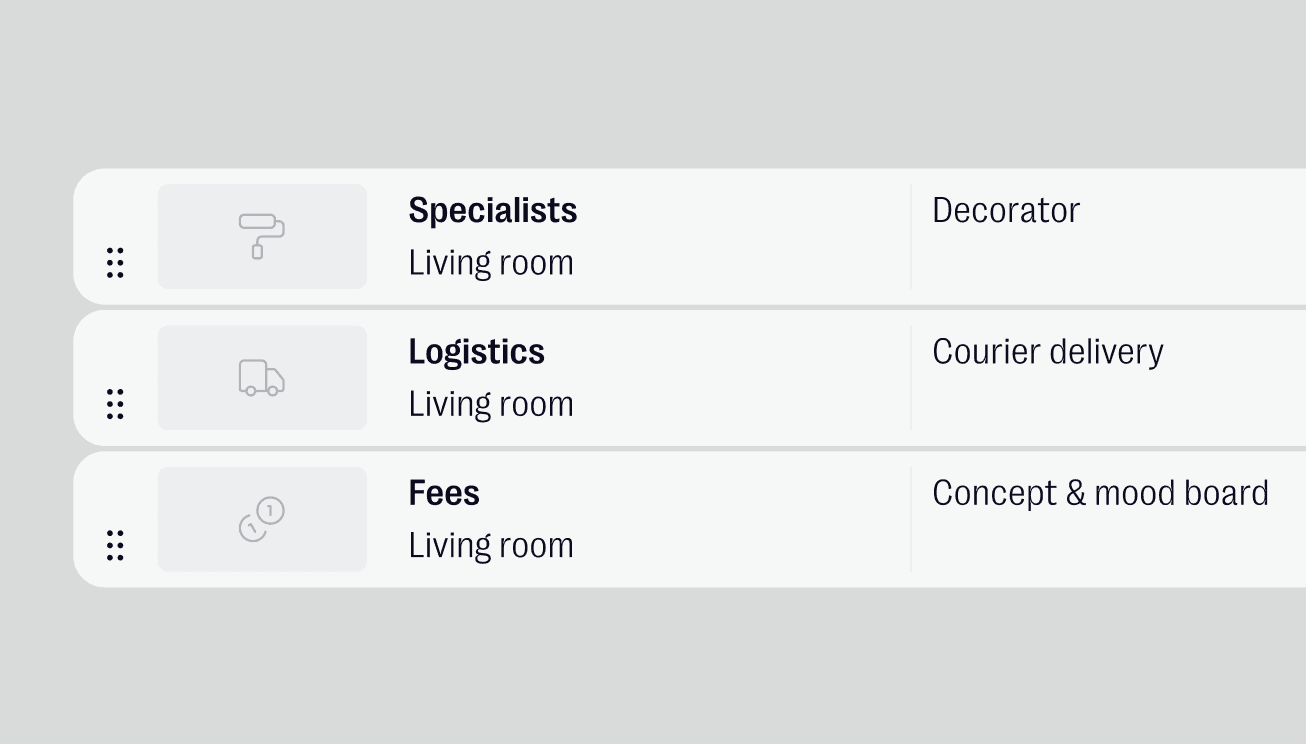
Service items
Add service items alongside products so your specification can reflect more of the real project work.
Read more
Work as a studio
When a project needs more people, thesheet gives you the studio tools around the sheet: team access, permissions, external collaborators and branding.

Studio branding
Add your studio identity to shared client experiences when you want the work to feel properly presented.
Read more

Team members and permissions
Invite your team, manage access and keep project work inside the right workspace.
Read more
External collaborators
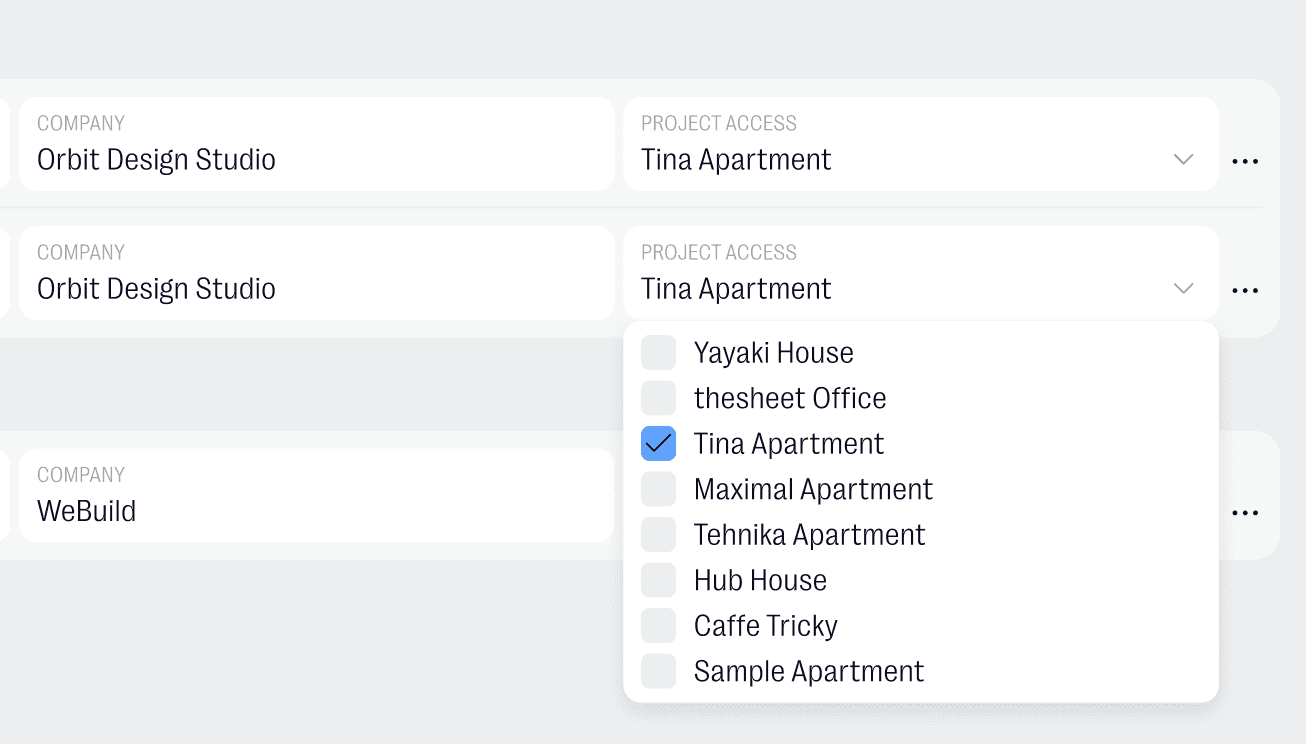
Bring collaborators into projects without turning every outside person into a paid seat.
Read more

Plans, billing and workspace
Manage company details, people, billing and plan settings from one workspace area.
Read more
Pricing
No trials. No time limits.
Just thesheet.
Whether you're just getting started or running a full agency, there's a plan that fits. Pick what works right now — you can always change your mind.
Good questions
Answers to common questions about getting started and using thesheet day to day.

Does the Web Clipper work on any website?
Yes — the Web Clipper works across any product page, regardless of supplier or brand. Click the browser extension and the product details land in your project automatically. You can also paste a URL directly into thesheet and the AI will extract the product information for you. If a page is structured in a way that makes automatic extraction difficult, you can fill in any missing details manually.
Does my client need to create an account to view the spec?
No. You share a link and they open it in their browser — no sign-up, no app to download, nothing to install. They can browse the full spec, see product images, leave comments, and approve or reject items with one click. On Studio, you can create separate links for different people — a client, a contractor, a supplier — each showing only the fields relevant to them.
Can I control what information is visible in the client view?
Yes, on the Studio plan. By default the shared view shows everything, which works well for most situations. Studio lets you customise field visibility per link — hide pricing from one recipient, hide technical dimensions from another, or create a stripped-back version for a supplier. You always know who approved or commented on what.
How does the product library work across projects?
Everything you clip or add goes into your personal product library — tagged, filtered, and searchable across every project you work on. You can organise products with tags the same way you'd create boards in Pinterest, except these are real products with accurate specs attached. When a product comes up again on a new project, it's one search away rather than starting from scratch.
Does thesheet work on mobile?
The client-facing side is fully optimised for mobile — approvals, comments, and browsing all work seamlessly on any device, since that's where most clients will open a shared link. For designers, thesheet is built as a desktop tool. You can check in on projects, review product statuses, and add products from your phone, but the full workflow is best experienced on a larger screen.