Studio branding
Client-facing project pages that look like your studio
Add your studio logo and brand details to the project material you share, so clients see work that feels like it came from you, not a generic tool. Your shared pages, PDF exports and link previews can carry the same visual care as the rest of your presentation work, from the first product idea to the final approval.

Make shared work feel finished
Use your studio branding on the pages and files clients see, so product selections feel more like part of your own process.
Keep the small details tidy
Add your logo, colours, font style and share image once, then let thesheet carry those details through the material you send out.
Give clients a clearer handover
When a client opens a link or PDF, they know whose work they are looking at. It keeps the project feeling polished without adding another design job.


"We provide an expensive service, so when clients get the information they should feel that it is next level."
Lukas Senkus
Architect and Interior Designer, Senkus Design
What you can do
Add your studio logo to client-facing project material
Set brand colours for shared presentation pages
Choose a font style that suits your studio
Upload a social share image for cleaner link previews
Use a designated project image when no share image is uploaded
Real life use
Workflow example
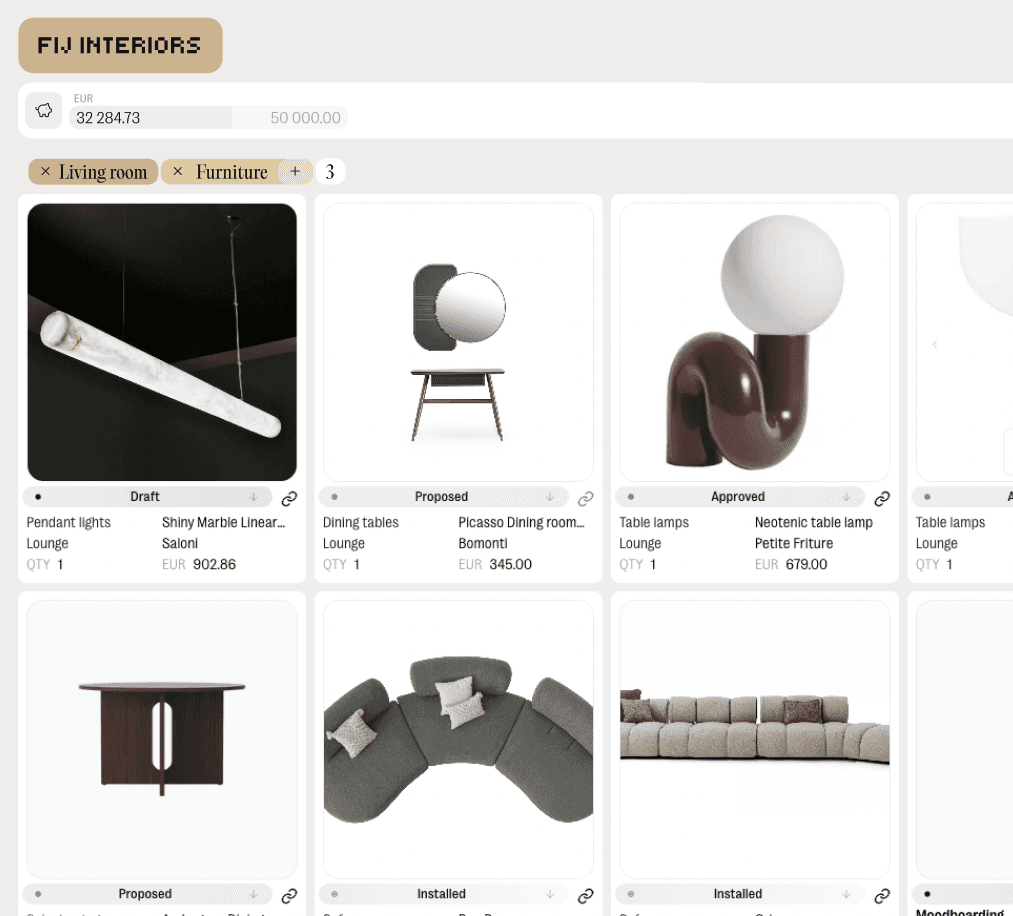
Set your studio branding once, then use it when you share a project. A client opens the link, reviews the products or approvals and sees a page that feels connected to your studio, not a loose spreadsheet or file export.
Try thesheet for free
Create a free workspace and build your first client-ready project.
Good questions
Answers to common questions about getting started and using thesheet day to day.

What is Studio branding in thesheet?
Studio branding lets you add your studio logo and brand details to the project material you share with clients. It helps shared pages, PDFs and link previews feel like part of your studio’s own presentation.
Where does my branding appear?
Your branding can appear on client-facing shared pages, PDF exports and link previews. The aim is to keep the material clients open and forward looking consistent with your studio.
Can I add a custom image for link previews?
Yes. You can upload a social share image for link previews. If you do not upload one, thesheet can use the designated project image instead.
Do I need to brand every project separately?
No. You set your studio branding once, then use it when sharing project material. That keeps the setup light and avoids redoing the same presentation details for every project.
Why use Studio branding for client sharing?
It makes shared work feel more considered. Clients are reviewing product selections, approvals or project details inside a page that carries your studio identity, which feels cleaner than sending another plain file or spreadsheet.